File Menu
AudioLabel Help File Topic
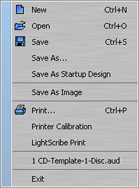
File Menu for AudioLabel CD Software
This above menu is displayed when you select "File" from the top menu bar in AudioLabel CD Label Making Software.
New: This option creates a new AudioLabel project file. The
New Project dialog is displayed.
Open: This option opens an existing AudioLabel project file. The "Open" dialog is displayed.
Save: This option saves changes to the current project file. The first time a project is saved, the "Save As" dialog will be displayed.
Save As: This option allows you to name and save the current project file. The "Save As" dialog is displayed.
Save As Startup Design: This option saves the current project as the one of the 6
Startup Designs, depending on the case type and number of discs in your project. The Startup design is the first project that is automatically loaded when AudioLabel starts.
Save as Image: This option saves your label as an image file.
You can create a Bitmap Files (bmp), JPEG Files (jpg), PNG Files (png), and TIFF Files (tif). The
Save As Image dialog is displayed.
Print: This option prints the current AudioLabel project. The
Print Dialog is displayed.
Printer Calibration: Use this option to calibrate the printer. The
Printer Calibration dialog is displayed.
LightScribe Print: This option opens the LightScribe Dialog to create LightScribe discs.
Exit: This option closes the AudioLabel program. You will be asked to save the current project if it has been modified.