Custom Color Dialog
AudioLabel CD Label Maker Software
The
Custom Color dialog is displayed when the
Custom Color button is pressed on the
Color Toolbar.
This dialog sets an exact color for selected the text or label
object.
The current color is displayed in the dialog when text (or the CD label background) is selected.
The Custom Color dialog box has no effect on images.
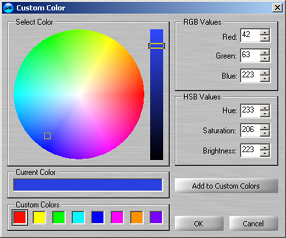
Select Color: This section sets the color using the mouse. The color can be changed by moving the two slide controls.
RGB Values: This section sets the color by manually entering RGB (red, green, and blue) color values.
HSB Values: This section sets the color by manually entering HSB (hue, saturation, and brightness) color values.
Current Color: This section displays the current color for the selected object.
Custom Colors: This section contains eight different color boxes that can be programmed using the 'Add to Custom Colors' button.
Clicking on any of these boxes will set the current color. All of the custom colors are saved the next time you open the AudioLabel Software.
Add to Custom Colors: This button is used to add a color to the Custom Colors section.
To create a custom color, first click on the custom color box you would like to set.
Next, select a color and then press this button.