Save As Image
AudioLabel Help File Topic
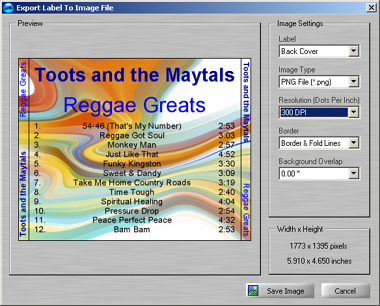
Saving Images of CD Cover Templates
This dialog is displayed when the
Save As Image option is selected from the
File Menu.
You can easily create high resolution images of your covers to share with friends, import into other programs, or give to commercial CD duplicators for high volume production.
AudioLabel can create Bitmap Files (bmp), JPEG Files (jpg), PNG Files (png), and TIFF Files (tif).
The following Image Settings can be changed:
Label: Selects the image to save.
Depending on your project, you can select templates for Page 1, Page 2, Page 3, Disc 1, Disc 2, Front Cover, Back Cover, Case, or Booklet.
Image Type: Selects the file type to save your image as.
AudioLabel can save as a Bitmap File (bmp), JPEG File (jpg), PNG File (png), or TIFF File (tif).
Resolution (Dots Per Inch): This option determines the size of the image in Dots Per Inch or DPI.
You can choose from 150 DPI, 300 DPI, or 600 DPI.
Border: This option determines if a one pixel border is added to the image file.
Background Overlap: This option sets how much distance the background overlaps the edge of the cover.
Sometimes is helpful to stretch your image past the edge of the cover and add background overlap so no white space is left around the edge after printing.
When a background color is set for the cover, the color will be stretched over the edge of the cover.
Width x Height: Displays the size of the image in pixels and inches (or millimeters depending on the
Units selected).