Color Toolbar
AudioLabel CD Cover Software
 Color Toolbar
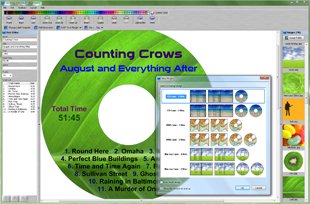
The Color Toolbar is used to change the color of the selected text or cover
object.
The currently selected color is highlighted on the toolbar.
 |
When a text object is selected, the toolbar changes the color of the highlighted text. If no text has been highlighted, all of the text within the object changes color. |
|
When a cover object is selected, the toolbar changes the color of the cd cover background. Any existing background image is removed so the color can be seen. |
|
The toolbar has no effect when an image object is selected. |